Showing posts with label Linux. Show all posts

Monday, November 30, 2015

Slow shutdown/reboot when mounting CIFS/SMB shares on Ubuntu and derivatives

My laptop with Linux Mint 17.2 suddenly started taking full minutes for every reboot/shutdown. What might have caused it?

I then remembered I had previously placed some new entries in the fstab, since I needed to mount some remote CIFS shares. Could this be the culprit?

Well, it seems it was exactly that: there is a bug in Network Manager which shuts down before unmounting the network shares. This will cause CIFS to hang and wait for 60 seconds or so for every share.

Even though the Ubuntu Wiki says that this bug has been solved since version 12.04, I have applied the suggested solution and it worked.
Now the shutdowns/reboots happen in an instant!

So, is the bug back? I don't know, but what I know is that this is how to fix this problem:
sudo ln -s /etc/init.d/umountnfs.sh /etc/rc0.d/K14umountnfs.sh
sudo ln -s /etc/init.d/umountnfs.sh /etc/rc6.d/K14umountnfs.sh

Thursday, November 26, 2015

Disable touchpad while writing

I'm now running Linux Mint 17.2 "Rafaela" on my Amilo SI1520, but even though there is a specific option to disable the touchpad while writing (you can find it in Preferences > Mouse & Touchpad) this solution wouldn't work.

The workaround is easy though, and can be accomplished by using the command syndaemon:

syndaemon -d -i 1
This disable the touchpad while typing on the keyboard, and will enable it again 1 second after the last key has been pressed. The -d option makes the command run as a daemon.

If you only want to disable tapping and scrolling (but not the mouse movements) when you type, just add the -t option:

syndaemon -d -t -i 1
To avoid having to type the command every time you logon, simply put the command above as a new entry in System > Preferences > Startup Applications

Wednesday, April 15, 2015

Linux Mint 17.1 "Rebecca" + Debian Wheezy

I installed Linux Mint 17.1 "Rebecca" Cinnamon Edition, a few months ago.

Again everything works perfectly. Linux Mint is a great choice to continue using the old SI1520!

A reader of this blog (thanks Ger!) has installed Debian Wheezy on this SI1520 with the following results:

Debian Wheezy
- Everything working.
- Wifi driver should be installed apart. (Proprietary License)
- Graphic adapter is not able to extend the screens to the S-Video but it could mirror to it, so fine.
Your choice!

Tuesday, February 18, 2014

Linux Mint 16 "Petra"

Installed Linux Mint 16 "Petra" Cinnamon Edition.

Everything works perfectly, this is a great OS for our old SI1520!

Wednesday, March 19, 2008

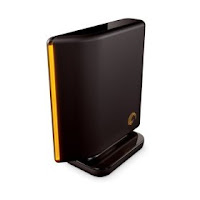
Seagate FreeAgent Desktop USB Drives on Ubuntu 7.10

A few weeks ago, I've bought an external USB drive. I chose a Seagate FreeAgent Desktop 500Gb, even though I knew it would not work 100% smoothly in Ubuntu. Anyway, I've read around about the problems it might give in linux and I was well prepared to solve them. Unfortunately the only problem I encountered after I bought it, was different from anything I've read on the various forums I browsed before buying.

Basically, the disk automounted only the first time I plugged it in my PC. From that moment on, when I plug it in, the front led would blink for some time, but nothing else would happen. I tried to unplug both the USB cable and the power cable, which seemed to work for some people, but it wouldn't solve my problem.

So, I had to solve in some other way.

I've found this "workaround" online, but I can't find the link anymore. Anyway here is what I did, for those people who might be interested:

STEP 1:
Open a terminal and give the following command:

sudo vol_id /dev/sd##

Where "##" is the partition of the FreeAgent drive (letter and number change from system to system, you just have to guess yours if you don't already know it. Mine, for example, is "d1", making the command "sudo vol_id /dev/sdd1").
This command will report a few info about your disk. Copy the UUID code of the disk/partition, it's a long series of numbers (and sometimes letters)

STEP 2:
Edit /etc/fstab and add the following line:

UUID=longnumber /media/MOUNTPOINT FILESYSTEM user,defaults 0 0

where:
longnumber is the uuid code of the partition you obtained in Step 1
MOUNTPOINT is the directory where you want the disk to be mounted (create the directory if you don't already have it: "sudo mkdir /media/MOUNTPOINT")
FILESYSTEM is the filesystem present on the drive (ntfs? ext3? vfat?)
user should let you mount the Freeagent hard disk without root permissions (but it did not work for me, see below)

STEP 3:
Create a script to mount/unmount your drive (change parameters where necessary).
Save it (I called it 'freeagent'), make it executable and copy/move it somewhere in your path (for example /usr/local/bin)
#!/bin/bash

if `mount grep -q /media/MOUNTPOINT`
then umount /media/MOUNTPOINT
else mount /media/MOUNTPOINT
fi

You then plug the USB drive, wait until its led stops blinking and then launch the script from a terminal (you can also create a shortcut on your desktop for ease of use, if you want).
It works this way: it checks whether the disk is mounted. If it is, it unmounts it. If it's not, it mounts it.
As I said in Step 2, the user option we wrote in the fstab should mount the disk without the need for root permissions, but it did not work for me. I had to edit the script and add "sudo" before 'umount' and 'mount' to make it work:

#!/bin/bash
if `mount grep -q /media/MOUNTPOINT`
then sudo umount /media/MOUNTPOINT
else sudo mount /media/MOUNTPOINT
fi

If you are making it a desktop shortcut to be launched by clicking on it, change sudo with the "graphical" command needed by your desktop environment (for example: "gksu" if using Gnome or "kdesudo" if using KDE).

Wednesday, October 31, 2007

Installation of Kubuntu 7.10 Gutsy Gibbon

Installation of Kubuntu Linux 7.10 (Gutsy Gibbon) on an Amilo SI1520.

Hardware Information

Screen & Monitors

Screen: Works
Correct resolution: Yes
Correct refresh rate: Yes
3D Acceleration: Yes
External monitor works: Not tested
External monitor - mirrors: Not tested
External monitor - extend desktop: Not tested

Power Management
Battery detected: Yes
Hibernates: Yes
Sleep: Yes (1)
Dim monitor on battery: No
Blank monitor on inactivity: Yes
Lid Close: Yes
Cpu frequency scaling: Yes

Sound
Sound works? Yes
Correct volume? Yes (Although volume is still pretty low)
Hardware volume switch: N/A (but Fn buttons to control volume work)
Headphone jack: Works
Mic jack: Does not work (I Couldn't manage to make it work)

Networking
Wired NIC: Works
Wireless NIC: Works
PCMCIA NIC: Untested
Firewire: Untested (Should work)
Bluetooth: Works
Modem: Untested
Infrared: N/A

Touchpad & Mice
Touchpad: Works
Touchpad - Doubletap = double click: Works
Touchpad - Scroll down side: Works
Touchpad - turned off while typing: Works (2)
External mouse - USB: Works
External mouse - Serial: Untested

Other Hardware
CD/DVD Burner: Works (Couldn't make it burn at speed >2x)
4-in-1 Card Reader: Works

'lspci' command output
00:00.0 Host bridge: Intel Corporation Mobile 945GM/PM/GMS, 943/940GML and 945GT Express Memory Controller Hub (rev 03)
00:02.0 VGA compatible controller: Intel Corporation Mobile 945GM/GMS, 943/940GML Express Integrated Graphics Controller (rev 03)
00:02.1 Display controller: Intel Corporation Mobile 945GM/GMS/GME, 943/940GML Express Integrated Graphics Controller (rev 03)
00:1b.0 Audio device: Intel Corporation 82801G (ICH7 Family) High Definition Audio Controller (rev 02)
00:1c.0 PCI bridge: Intel Corporation 82801G (ICH7 Family) PCI Express Port 1 (rev 02)
00:1c.1 PCI bridge: Intel Corporation 82801G (ICH7 Family) PCI Express Port 2 (rev 02)
00:1c.2 PCI bridge: Intel Corporation 82801G (ICH7 Family) PCI Express Port 3 (rev 02)
00:1d.0 USB Controller: Intel Corporation 82801G (ICH7 Family) USB UHCI Controller #1 (rev 02)
00:1d.1 USB Controller: Intel Corporation 82801G (ICH7 Family) USB UHCI Controller #2 (rev 02)
00:1d.2 USB Controller: Intel Corporation 82801G (ICH7 Family) USB UHCI Controller #3 (rev 02)
00:1d.3 USB Controller: Intel Corporation 82801G (ICH7 Family) USB UHCI Controller #4 (rev 02)
00:1d.7 USB Controller: Intel Corporation 82801G (ICH7 Family) USB2 EHCI Controller (rev 02)
00:1e.0 PCI bridge: Intel Corporation 82801 Mobile PCI Bridge (rev e2)
00:1f.0 ISA bridge: Intel Corporation 82801GBM (ICH7-M) LPC Interface Bridge (rev 02)
00:1f.1 IDE interface: Intel Corporation 82801G (ICH7 Family) IDE Controller (rev 02)
00:1f.2 SATA controller: Intel Corporation 82801GBM/GHM (ICH7 Family) SATA AHCI Controller (rev 02)
00:1f.3 SMBus: Intel Corporation 82801G (ICH7 Family) SMBus Controller (rev 02)
01:00.0 Network controller: Intel Corporation PRO/Wireless 3945ABG Network Connection (rev 02)
07:08.0 Ethernet controller: Intel Corporation PRO/100 VE Network Connection (rev 02)
07:09.0 FireWire (IEEE 1394): Ricoh Co Ltd R5C832 IEEE 1394 Controller
07:09.1 Generic system peripheral [0805]: Ricoh Co Ltd R5C822 SD/SDIO/MMC/MS/MSPro Host Adapter (rev 19)
07:09.2 System peripheral: Ricoh Co Ltd R5C843 MMC Host Controller (rev 01)
07:09.3 System peripheral: Ricoh Co Ltd R5C592 Memory Stick Bus Host Adapter (rev 0a)
07:09.4 System peripheral: Ricoh Co Ltd xD-Picture Card Controller (rev 05)


NOTES:
(1) Suspend to RAM works only with BIOS version 1.10. Later versions have something wrong and this feature will not work properly. You can downgrade to v1.10 if your laptop does NOT mount an Intel Core Duo (Yonah) D0 stepping processor (which basically means those CPUs coded T2x00). Check here for more detailed information.
(2) Needs this trick

Last update: November 8, 2007

Tuesday, June 19, 2007

External monitor

Blog reader Juan let us know that he tested the following features of the SI1520 with Ubuntu Feisty Fawn 7.04:

External monitor works: OK
External monitor - mirrors: OK
External monitor - extend desktop: OK

Thanks Juan!

Friday, May 4, 2007

CPU frequency scaling in Ubuntu

I've managed to activate CPU frequency scaling of my SI1520's Core 2 Duo processor in Ubuntu Feisty.
Everything passes through the CPU Frequency Scaling Monitor Gnome applet, which must be reconfigured to enable manual CPU frequency scaling.

The shell command to do this is:

$ sudo dpkg-reconfigure gnome-applets

You will have to answer “Yes” to the question regarding setting the suid of the cpufreq-selector executable. Now you can left click on the CPU Frequency Monitor Applet and choose the CPU frequency and/or operative mode (Conservative, Ondemand, Powersave, Performance).

Friday, April 20, 2007

Installation of Ubuntu Feisty Fawn 7.04

Ubuntu Linux 7.04 is finally out: how does it behave on an Amilo SI1520?

Hardware Information

Screen & Monitors

Screen: Works
Correct resolution: Yes (after installing package 915resolution)
Correct refresh rate: Yes
3D Acceleration: Yes
External monitor works: Yes (tested by Juan)
External monitor - mirrors: Yes (tested by Juan)
External monitor - extend desktop: Yes (tested by Juan)

Power Management
Battery detected: Yes
Hibernates: Yes
Sleep: Yes (1)
Dim monitor on battery: No
Blank monitor on inactivity: Yes
Lid Close: Yes
Cpu frequency scaling: Yes (2)

Sound
Sound works? Yes
Correct volume? Yes (Although volume is pretty low)
Hardware volume switch: N/A (but Fn buttons to control volume work)
Headphone jack: Works
Mic jack: Does not work (I Couldn't manage to make it work)

Networking
Wired NIC: Works
Wireless NIC: Works
PCMCIA NIC: Untested
Firewire: Untested (Should work)
Bluetooth: Yes (Not personally tested. See Aron's comment.)
Modem: Untested
Infrared: N/A

Touchpad & Mice
Touchpad: Works
Touchpad - Doubletap = double click: Works
Touchpad - Scroll down side: Works
Touchpad - turned off while typing: Works (3)
External mouse - USB: Works
External mouse - Serial: Untested

Other Hardware
CD/DVD Burner: Works (Couldn't make it burn at speed >2x)
4-in-1 Card Reader: Works

Output of the lspci command:
00:00.0 Host bridge: Intel Corporation Mobile 945GM/PM/GMS, 943/940GML and 945GT Express Memory Controller Hub (rev 03)
00:02.0 VGA compatible controller: Intel Corporation Mobile 945GM/GMS, 943/940GML Express Integrated Graphics Controller (rev 03)
00:02.1 Display controller: Intel Corporation Mobile 945GM/GMS, 943/940GML Express Integrated Graphics Controller (rev 03)
00:1b.0 Audio device: Intel Corporation 82801G (ICH7 Family) High Definition Audio Controller (rev 02)
00:1c.0 PCI bridge: Intel Corporation 82801G (ICH7 Family) PCI Express Port 1 (rev 02)
00:1c.1 PCI bridge: Intel Corporation 82801G (ICH7 Family) PCI Express Port 2 (rev 02)
00:1c.2 PCI bridge: Intel Corporation 82801G (ICH7 Family) PCI Express Port 3 (rev 02)
00:1d.0 USB Controller: Intel Corporation 82801G (ICH7 Family) USB UHCI Controller #1 (rev 02)
00:1d.1 USB Controller: Intel Corporation 82801G (ICH7 Family) USB UHCI Controller #2 (rev 02)
00:1d.2 USB Controller: Intel Corporation 82801G (ICH7 Family) USB UHCI Controller #3 (rev 02)
00:1d.3 USB Controller: Intel Corporation 82801G (ICH7 Family) USB UHCI Controller #4 (rev 02)
00:1d.7 USB Controller: Intel Corporation 82801G (ICH7 Family) USB2 EHCI Controller (rev 02)
00:1e.0 PCI bridge: Intel Corporation 82801 Mobile PCI Bridge (rev e2)
00:1f.0 ISA bridge: Intel Corporation 82801GBM (ICH7-M) LPC Interface Bridge (rev 02)
00:1f.1 IDE interface: Intel Corporation 82801G (ICH7 Family) IDE Controller (rev 02)
00:1f.2 SATA controller: Intel Corporation 82801GBM/GHM (ICH7 Family) SATA AHCI Controller (rev 02)
00:1f.3 SMBus: Intel Corporation 82801G (ICH7 Family) SMBus Controller (rev 02)
01:00.0 Network controller: Intel Corporation PRO/Wireless 3945ABG Network Connection (rev 02)
07:08.0 Ethernet controller: Intel Corporation PRO/100 VE Network Connection (rev 02)
07:09.0 FireWire (IEEE 1394): Ricoh Co Ltd R5C832 IEEE 1394 Controller
07:09.1 Generic system peripheral [0805]: Ricoh Co Ltd R5C822 SD/SDIO/MMC/MS/MSPro Host Adapter (rev 19)
07:09.2 System peripheral: Ricoh Co Ltd Unknown device 0843 (rev 01)
07:09.3 System peripheral: Ricoh Co Ltd R5C592 Memory Stick Bus Host Adapter (rev 0a)
07:09.4 System peripheral: Ricoh Co Ltd xD-Picture Card Controller (rev 05)


NOTES:
(1) Suspend to RAM works only with BIOS version 1.10. Later versions have something wrong and this feature will not work properly. You can downgrade to v1.10 if your laptop does NOT mount an Intel Core Duo (Yonah) D0 stepping processor (which basically means those CPUs coded T2x00). Check here for more detailed information.
(2) You can manually set the CPU frequency and the operative mode by reconfiguring the Gnome applets ($ sudo dpkg-reconfigure gnome-applets) and answering “Yes” to the question regarding setting the suid of the cpufreq-selector executable. Now you can left click on the CPU Frequency Monitor Applet and choose the CPU frequency and/or operative mode (Conservative, Ondemand, Powersave, Performance).
(3) Needs this trick

Last update: June 19, 2007

Monday, April 16, 2007

Touchpad finally working again after a Suspend/Resume in Feisty

As suggested by fellow user skipper (who I thank very much) there is a way to make the touchpad work after a suspend/resume.

The solution is a downgrade of the BIOS of the laptop to version 1.10. The problem, in fact, seems to be related to the two latest versions of the BIOS (v1.19 and v1.20). Anyone who does not necessarily need one of these two later BIOS versions, should downgrade to v1.10 to make suspend work.

If your SI1520 does not mount an Intel Core Duo (Yonah) D0 stepping processor (which means mainly those CPUs coded T2x00) you can downgrade to version 1.10. Otherwise you'll have to stick with a BIOS version >= 1.17 and with no touchpad after resume. :-(

v1.19 is officially the initial BIOS for Windows Vista 32bit, so downgrading could bring up problems with Vista. I couldn't find anything wrong in my brief test, but I don't plan to be using Vista much, so that's not so important to me.

Please leave a comment with your experiences with this matter, as it can help other fellow SI1520 owners. Thanks.

Necessary legal disclaimer:

Reasonable effort is made to ensure that the information provided on this blog is accurate, however, no guarantees for the currency or accuracy of information are made. This blog's information is provided "as is", without warranty of any kind, whether expressed or implied.

This blog and its author make no guarantee and hold no responsibility for any damage, injury, loss of property, loss of data, loss of any and all resources, or any negative influence what-so-ever, that may result from any and all usage of the information found on this blog, or linked from this blog.

Negative consequences of your usage of this blog are solely your problem and your responsibility. All consequences of the usage of this blog do not involve this blog and its author, at all, ever. You hold full responsibility for your actions.

Use this blog's information resources at your own risk.

Thursday, April 12, 2007

Feisty beta's Network Manager OK Again

A new update of the Network Manager package for Ubuntu Feisty beta has been released today.
The first reports indicate that everything has gone back to normal.
I have not updated yet, so I can not verify. I will do ASAP.
But the network should now work again.

*EDIT*: I've just updated. Everything looks fine.

Wednesday, April 11, 2007

WARNING: Feisty beta, Updates of April 11, 2007


If you have installed Ubuntu Feisty beta on your SI1520:

DO NOT INSTALL TODAY'S UPDATES (April 11).

Something is wrong with the update, and the network manager stops working. As a consequence, network adapters are not recognized anymore, the wireless IPW3945 will not work, and the "cabled" network will work only after setting it up again (but you will not have any confirmation from the network manager icon, since this won't work).

You have been warned! ;)

*EDIT*:

Temporary solution:
Until the problem is solved, it is possible to downgrade the network manager to the previous (working) version:

sudo dpkg -i /var/cache/apt/archives/
network-manager_0.6.4-6ubuntu4_i386.deb
(please notice: it's a single line of code)


This will work if you still have the package in your cache.

Monday, April 9, 2007

Installation of Ubuntu Feisty Fawn 7.04 beta

WARNING: Click HERE if you want information on installing Ubuntu 7.04 Feisty Fawn FINAL.


How does Ubuntu 7.04 beta behave on an Amilo SI1520?

Hardware Information

Screen & Monitors

Screen: Works
Correct resolution: Yes (after installing package 915resolution)
Correct refresh rate: Yes
3D Acceleration: Yes
External monitor works: Untested
External monitor - mirrors: Untested
External monitor - extend desktop: Untested

Power Management
Battery detected: Yes
Hibernates: Yes
Sleep: Yes (1)
Dim monitor on battery: No
Blank monitor on inactivity: Yes
Lid Close: Yes
Cpu frequency scaling: Untested

Sound
Sound works? Yes
Correct volume? Yes (Although volume is pretty low)
Hardware volume switch: N/A (but Fn buttons to control volume work)
Headphone jack: Works
Mic jack: Does not work (I Couldn't manage to make it work)

Networking
Wired NIC: Works
Wireless NIC: Works
PCMCIA NIC: Untested
Firewire: Untested (Should work)
Bluetooth: Untested (Should work)
Modem: Untested
Infrared: N/A

Touchpad & Mice
Touchpad: Works
Touchpad - Doubletap = double click: Works
Touchpad - Scroll down side: Works
Touchpad - turned off while typing: Does not work
External mouse - USB: Works
External mouse - Serial: Untested

Other Hardware
CD/DVD Burner: Works (Couldn't make it burn at speed >2x)
4-in-1 Card Reader: Works (2)

NOTES:
(1) Suspend to RAM works only with BIOS version 1.10. Later versions have something wrong and this feature will not work properly. You can downgrade to v1.10 if your laptop does NOT mount an Intel Core Duo (Yonah) D0 stepping processor (which basically means those CPUs coded T2x00). Check here for more detailed information.


(2) The built-in Card Reader works with kernel 2.6.20-12-generic and 2.6.20-15-generic. Booting with other kernels will result in not being able to use the card reader.

Saturday, April 7, 2007

OpenSUSE 10.2 LiveDVD

I wanted to try OpenSUSE 10.2, since it's said to have the best hardware support among all distros. I inserted the LiveDVD in the CD/DVD reader of the SI1520, and it booted.
After a few seconds, a choice is given to boot the Gnome LiveDVD or the KDE LiveDVD. I chose Gnome and pressed Return.
The DVD started to spin, a splash screen appeared, and then the screen went black with a number of errors. The last few rows stated:

"Cannot find the CD I was booted from - doh!"

And everything stopped. If this is the distro with the best hardware support... :)

*EDIT*: I managed to make the LiveDVD boot by entering the BIOS and enabling 32-bit performance for the CD/DVD drive. Now testing.

Monday, April 2, 2007

Installing Ubuntu

I've installed Ubuntu 7.04 Feisty Fawn beta on my Amilo.
In the beginning I installed Kubuntu, but having been a Gnome user for some time, I really don't feel at home with KDE. Anyway, since Ubuntu and Kubuntu share the same structure, only with different desktop managers, the results should be the same.

Installation runs smoothly and no particular instructions are needed. After a couple of days of use I can say that all the most important things work, with a few exceptions:

- 4-in1 card reader worked until the Update Manager asked me to make a "Partial Upgrade". That caused the installation of a new kernel (2.6.20-13) that seems not to like the card reader. Solution: boot with the older kernel (2.6.20-12).
- The touchpad won't work after a "resume" from suspend-to-ram. This seems to be a common problem with Synaptics touchpads, as a quick google search showed. Solution: none at the moment.
- Microphone: another long-known problem, still with no solution. I've found a tutorial that claimed to solve the problem but instead it made Ubuntu not recognize my sound card anymore.
- The light sensor that automatically adjusts the display's contrast/brightness does not work actually works! Solution: none needed.
- The silent mode button does not work. Solution: none at the moment.
- The Num Lock button does not work.

Power management in Gnome is not the greatest. Anyway with the default settings, both suspend-to-ram ("Suspend") and suspend-to-disk ("Hibernate") work.
It's said that installing powersaved helped but I couldn't manage to make it work. Probably powersaved works better, but I could not manage to make Suspend and Hibernate work with this method, so I went back to the default power management.

That's all I can think of right now. I'll make a complete report about what works and what doesn't soon. But in a few words I can say that the Amilo SI1520 is reasonably linux-friendly.

Friday, March 30, 2007

Here it is!

Ok, I needed a couple of days to make myself accustomed to the laptop and to try and understand a few things.
First impressions:
  • it's light (although heavier than I thought I'd feel, and heavier than what FSC declares: 1.9kg instead of 1.7),
  • the display is good. I thought that a resolution of 1280x800 on a 12.1" screen would make everything soooo small, but it's actually perfectly usable.
  • the keyboard is ok. I'm not used to type on laptops' keyboards, but the feel is good. The only two drawbacks I could find so far are that the arrow keys are smaller than the other keys, and that there is no PgUp/PgDown/"Begin"/End keys. I mean, there are, but you have to press two keys (Fn key + an arrow) to use these functions.
  • Construction is good. The laptop looks well built, and there are no strange noises when one picks it up. Maybe it's because it's brand new. Anyway this was something I was worried about because before buying it I read all the reviews I could find, and a few pointed out that the materials the SI1520 is built of are not so good. Of course it's mainly plastic, but not so cheap as those reviews said.
  • The touchpad looks good. It has a nice feel and works well. The rightmost part of it works as a scroller, and influences the vertical scrollbar of your browser (or any other window that shows one). Nice touch.
  • Now on to the worse part. Of course this is a personal opinion! The hard drive (120Gb unformatted, 111Gb formatted) is divided in three partitions:
1. A 12Gb hidden partition, used as "recovery" partition
2. A 79Gb partition, on which Windows Vista Home Premium resides
3. A 20Gb partition, for "Data"

I found it was stupid to waste 12 Gb (more than 10% of the entire disk) for a recovery partition that would probably never be used. I mean, recovery might be needed one day or the other, but that can be easily done with the Recovery DVD found in the box. I was worried that the recovery DVD was just a "boot disk" that would recovery the installation by copying data from the hidden partition to Vista's one. But after a few experiments, I've found out that this DVD is an OEM version of the setup DVD for Windows Vista, so one can use it to install Vista from scratch.

Therefore I erased all the partitions and made them from zero. My hard drive is now divided into two partitions: a 37Gb partition for Windows Vista, and a 74Gb partition for Linux.
Reinstalling Vista took around half an hour, and all went smoothly. Only the built-in memory card reader wouldn't be recognized by the installation, but the Drivers Cd included in the package solved the problem easily.
I then proceeded to installing Linux. I chose the Kubuntu distribution, because I already am an Ubuntu user, and because this distribution works great with this laptop.
But I will get into the details of the Kubuntu installation in a future post.