Thursday, September 4, 2008

More than 2Gb of RAM on the SI1520

Fellow blog reader Helder (thanks!) reports his experience in expanding his SI1520's memory over the limit of 2Gbs, which is what is stated in the official specifications of this laptop:

I have put 2GB + 1GB of DDR2-667 memory, and it worked just fine. I've tried with 2 x 2 GB, but the laptop couldn't recognize past the 3 GB.
Besides, I suspect that there are implications regarding the video memory allocation, because when I booted into either XP or Ubuntu, the screen went all blank, altough the computer was still responsive. It might be the case of just some tweaking.

I used Kingston memory, with these part numbers:

- 2GB - KVR667D2S5/2G
- 1GB - KVR667D2S5/1G

If anyone managed to make the SI1520 work with two 2Gbs memory modules, please let us know, even if the laptop only recognizes a total of 3Gbs!
In fact, the use of two memory modules of the same type would make a "dual channel" setup, allowing the laptop to access memory much faster, since it would see them as a single 128bit wide memory bank, instead of two 64bit wide banks.

Update 4/18/2009: user neustaedter points out that using Windows Vista 64, the system recognizes all 4Gb. This does not work with BIOS v1.20, and v1.10 needs to be installed.

Tuesday, April 15, 2008

eBay gone crazy

Today, eBay shipping fees for some items I've put in my "my eBay" page have gone crazy.
Look at these shipping costs: one million dollars to ship a $5 item!


Luckily if I enter the items' auction pages, the shipping fees go back to normal. :-)

Wednesday, March 19, 2008

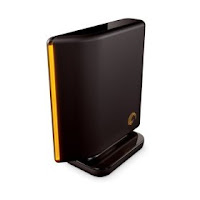
Seagate FreeAgent Desktop USB Drives on Ubuntu 7.10

A few weeks ago, I've bought an external USB drive. I chose a Seagate FreeAgent Desktop 500Gb, even though I knew it would not work 100% smoothly in Ubuntu. Anyway, I've read around about the problems it might give in linux and I was well prepared to solve them. Unfortunately the only problem I encountered after I bought it, was different from anything I've read on the various forums I browsed before buying.

Basically, the disk automounted only the first time I plugged it in my PC. From that moment on, when I plug it in, the front led would blink for some time, but nothing else would happen. I tried to unplug both the USB cable and the power cable, which seemed to work for some people, but it wouldn't solve my problem.

So, I had to solve in some other way.

I've found this "workaround" online, but I can't find the link anymore. Anyway here is what I did, for those people who might be interested:

STEP 1:
Open a terminal and give the following command:

sudo vol_id /dev/sd##

Where "##" is the partition of the FreeAgent drive (letter and number change from system to system, you just have to guess yours if you don't already know it. Mine, for example, is "d1", making the command "sudo vol_id /dev/sdd1").
This command will report a few info about your disk. Copy the UUID code of the disk/partition, it's a long series of numbers (and sometimes letters)

STEP 2:
Edit /etc/fstab and add the following line:

UUID=longnumber /media/MOUNTPOINT FILESYSTEM user,defaults 0 0

where:
longnumber is the uuid code of the partition you obtained in Step 1
MOUNTPOINT is the directory where you want the disk to be mounted (create the directory if you don't already have it: "sudo mkdir /media/MOUNTPOINT")
FILESYSTEM is the filesystem present on the drive (ntfs? ext3? vfat?)
user should let you mount the Freeagent hard disk without root permissions (but it did not work for me, see below)

STEP 3:
Create a script to mount/unmount your drive (change parameters where necessary).
Save it (I called it 'freeagent'), make it executable and copy/move it somewhere in your path (for example /usr/local/bin)
#!/bin/bash

if `mount grep -q /media/MOUNTPOINT`
then umount /media/MOUNTPOINT
else mount /media/MOUNTPOINT
fi

You then plug the USB drive, wait until its led stops blinking and then launch the script from a terminal (you can also create a shortcut on your desktop for ease of use, if you want).
It works this way: it checks whether the disk is mounted. If it is, it unmounts it. If it's not, it mounts it.
As I said in Step 2, the user option we wrote in the fstab should mount the disk without the need for root permissions, but it did not work for me. I had to edit the script and add "sudo" before 'umount' and 'mount' to make it work:

#!/bin/bash
if `mount grep -q /media/MOUNTPOINT`
then sudo umount /media/MOUNTPOINT
else sudo mount /media/MOUNTPOINT
fi

If you are making it a desktop shortcut to be launched by clicking on it, change sudo with the "graphical" command needed by your desktop environment (for example: "gksu" if using Gnome or "kdesudo" if using KDE).

Wednesday, October 31, 2007

Installation of Kubuntu 7.10 Gutsy Gibbon

Installation of Kubuntu Linux 7.10 (Gutsy Gibbon) on an Amilo SI1520.

Hardware Information

Screen & Monitors

Screen: Works
Correct resolution: Yes
Correct refresh rate: Yes
3D Acceleration: Yes
External monitor works: Not tested
External monitor - mirrors: Not tested
External monitor - extend desktop: Not tested

Power Management
Battery detected: Yes
Hibernates: Yes
Sleep: Yes (1)
Dim monitor on battery: No
Blank monitor on inactivity: Yes
Lid Close: Yes
Cpu frequency scaling: Yes

Sound
Sound works? Yes
Correct volume? Yes (Although volume is still pretty low)
Hardware volume switch: N/A (but Fn buttons to control volume work)
Headphone jack: Works
Mic jack: Does not work (I Couldn't manage to make it work)

Networking
Wired NIC: Works
Wireless NIC: Works
PCMCIA NIC: Untested
Firewire: Untested (Should work)
Bluetooth: Works
Modem: Untested
Infrared: N/A

Touchpad & Mice
Touchpad: Works
Touchpad - Doubletap = double click: Works
Touchpad - Scroll down side: Works
Touchpad - turned off while typing: Works (2)
External mouse - USB: Works
External mouse - Serial: Untested

Other Hardware
CD/DVD Burner: Works (Couldn't make it burn at speed >2x)
4-in-1 Card Reader: Works

'lspci' command output
00:00.0 Host bridge: Intel Corporation Mobile 945GM/PM/GMS, 943/940GML and 945GT Express Memory Controller Hub (rev 03)
00:02.0 VGA compatible controller: Intel Corporation Mobile 945GM/GMS, 943/940GML Express Integrated Graphics Controller (rev 03)
00:02.1 Display controller: Intel Corporation Mobile 945GM/GMS/GME, 943/940GML Express Integrated Graphics Controller (rev 03)
00:1b.0 Audio device: Intel Corporation 82801G (ICH7 Family) High Definition Audio Controller (rev 02)
00:1c.0 PCI bridge: Intel Corporation 82801G (ICH7 Family) PCI Express Port 1 (rev 02)
00:1c.1 PCI bridge: Intel Corporation 82801G (ICH7 Family) PCI Express Port 2 (rev 02)
00:1c.2 PCI bridge: Intel Corporation 82801G (ICH7 Family) PCI Express Port 3 (rev 02)
00:1d.0 USB Controller: Intel Corporation 82801G (ICH7 Family) USB UHCI Controller #1 (rev 02)
00:1d.1 USB Controller: Intel Corporation 82801G (ICH7 Family) USB UHCI Controller #2 (rev 02)
00:1d.2 USB Controller: Intel Corporation 82801G (ICH7 Family) USB UHCI Controller #3 (rev 02)
00:1d.3 USB Controller: Intel Corporation 82801G (ICH7 Family) USB UHCI Controller #4 (rev 02)
00:1d.7 USB Controller: Intel Corporation 82801G (ICH7 Family) USB2 EHCI Controller (rev 02)
00:1e.0 PCI bridge: Intel Corporation 82801 Mobile PCI Bridge (rev e2)
00:1f.0 ISA bridge: Intel Corporation 82801GBM (ICH7-M) LPC Interface Bridge (rev 02)
00:1f.1 IDE interface: Intel Corporation 82801G (ICH7 Family) IDE Controller (rev 02)
00:1f.2 SATA controller: Intel Corporation 82801GBM/GHM (ICH7 Family) SATA AHCI Controller (rev 02)
00:1f.3 SMBus: Intel Corporation 82801G (ICH7 Family) SMBus Controller (rev 02)
01:00.0 Network controller: Intel Corporation PRO/Wireless 3945ABG Network Connection (rev 02)
07:08.0 Ethernet controller: Intel Corporation PRO/100 VE Network Connection (rev 02)
07:09.0 FireWire (IEEE 1394): Ricoh Co Ltd R5C832 IEEE 1394 Controller
07:09.1 Generic system peripheral [0805]: Ricoh Co Ltd R5C822 SD/SDIO/MMC/MS/MSPro Host Adapter (rev 19)
07:09.2 System peripheral: Ricoh Co Ltd R5C843 MMC Host Controller (rev 01)
07:09.3 System peripheral: Ricoh Co Ltd R5C592 Memory Stick Bus Host Adapter (rev 0a)
07:09.4 System peripheral: Ricoh Co Ltd xD-Picture Card Controller (rev 05)


NOTES:
(1) Suspend to RAM works only with BIOS version 1.10. Later versions have something wrong and this feature will not work properly. You can downgrade to v1.10 if your laptop does NOT mount an Intel Core Duo (Yonah) D0 stepping processor (which basically means those CPUs coded T2x00). Check here for more detailed information.
(2) Needs this trick

Last update: November 8, 2007

Saturday, August 11, 2007

How to Install Windows XP on an Amilo SI1520 that comes with Windows Vista

When I turned the SI1520 on for the first time, I finally could use the famous Windows Vista. Well, I've been hating it from the very start.
Apart from the problems with the activation that I've already talked about, it is too heavy for the system, too slow, and most of the important programs I needed wouldn't run (Nikon Capture, for example). And don't let me start on games...
So I've decided to downgrade to Windows XP (although I consider it an upgrade, since the laptop now works smoothfully and VERY fast!).

In order to install XP you need an original Windows XP Installation disc, of course. The problem is that the SI1520 comes with no floppy drive, therefore (unless you have a USB floppy drive) you won't be able to load the drivers for the SATA controller, which the XP setup won't recognize otherwise.

If this is the case, there are a couple of nice programs out there that solve this problem for us. The most common are nLite and XP-Iso-Builder.
I've used XP-Iso-Builder, and it worked just fine. But before you proceed you have to download all the XP drivers for the SI1520 from the Fujitsu-Siemens website.

We assume you already did that, and that you have unzipped them all in their respective directory (tip: I STRONGLY advise to unzip them on a USB pen).
Now you can start XP-Iso-Builder and create an "SI1520XPCD". The process is divided into eleven steps, but only a few of them are the key ones. What's important is that:
  • in Step 1 you indicate your original Windows XP setup CD as the source disc, then select a Temporary folder where the program can copy the files.
  • in Step 6 you add the SATA controller driver: just browse to where you unzipped the drivers (USB pen anyone?), enter the directory of the SATA drivers, and point to the file called txtsetup.oem. A dialog windows opens up, asking for which controller to select. Just select them all, so to be safe.
  • Step 7 is not mandatory but useful: integrate ALL the other drivers you downloaded from the FSC site, so that you won't have to install them one-by-one after the XP installation. But you can do that anyway, it just takes a little longer.
  • Just skip everything else, and in Step 11 select where to save the new ISO image of your Amilo XP CD. Then select "Start integration" and just wait until the program gives you the message "Image successfully created". If it does not say so... sorry, you must have made something wrong. Try to repeat every step.
Burn the image with Nero, or any other burning software you use. Remember you have to burn the ISO (there usually is an option called "burn ISO image" or something like that. You have to choose that! Remember NOT to open a "project" and transfer the iso file into that, because this way it will NOT work.

Now, assuming you burned the image correctly, you will have the brand new XP installation disc. Just put it into your SI1520 and install XP as usual.

It's almost done! In fact when you boot to XP, you will eventually notice that the sound card was not recognized (and you will hear system beeps instead of sounds).
Let's solve this too.
  1. download the "High Definition Audio Codecs" from Realtek website
  2. unzip them and install them
  3. the system will then asks for a file called CHDAud.sys
  4. insert the USB pen with the drivers downloaded from the Fujitsu-Siemens website
  5. browse to the Conexant_Audio_3.12.0.50 directory (name might change with future updates of the driver)
  6. select the required file, and click OK.
And it's done.
Now you have a fully working Windows XP on your Amilo SI1520. Yes, you won't have Aero, but believe me, you won't miss it at all.